
Common questions
How do I add players, or import a whole roster?
Open the Roster tab and tap ADD A PLAYER. Fill in the name, a jersey number from 1 to 99, an optional photo, their positions, and an optional parent email or phone. Tap Add. The sheet clears itself so you can add the next player straight away; tap Done when you are finished. Squadly warns you if another player already has that number.
Positions: tap them in the order you would play someone. The first tap is their main position, the second their next best. Selecting none means utility, happy anywhere.
To import a CSV, tap or import from a CSV file on the empty roster (or +, then Import from CSV). The file needs a name column; jersey, position and is_goalkeeper (1, true or yes) are optional. Squadly previews every row, marks anything it cannot import, and skips those rows with a count rather than dropping them silently.
How do formations and lineups work?
Squadly has preset formations for 5v5, 6v6, 7v7, 9v9 and 11v11. Pick one per game in the lineup builder, or set a default for the team under Settings > Game Defaults.
Opening an upcoming game lands you in the Lineup screen. Tap the formation pill at the top of the field to switch formations. Drag a player from the bench onto a slot to place them; drop them on an occupied slot to swap the two. Drag a player back down to the bench to take them off. Long-press a player on the field to move them to a specific slot.
Auto-fill fills every remaining slot for you, starting with the players who have played the least and matching them to their positions. From the ... menu you can save the lineup as a template, apply a saved one, or copy last game's ending lineup in one tap.
How do I start a game, and why does the clock keep running?
Schedule the game from the Live Game tab with the + button: opponent, kickoff time, SCHEDULE. On the day, open the game, set the lineup, and tap START GAME once every slot is filled. Then tap the clock, or the pause/play icon beside it, to start it running.
The clock counts up and does not stop itself at the end of a period. Once you are past the period length it turns red and shows how far over you are. You tap the advance-period button when the referee actually ends the period. After the final period Squadly asks whether to end the game or continue into overtime.
Started by mistake? Until the clock first runs, the live screen offers Back to pre-game, which returns you to the lineup with everything intact.
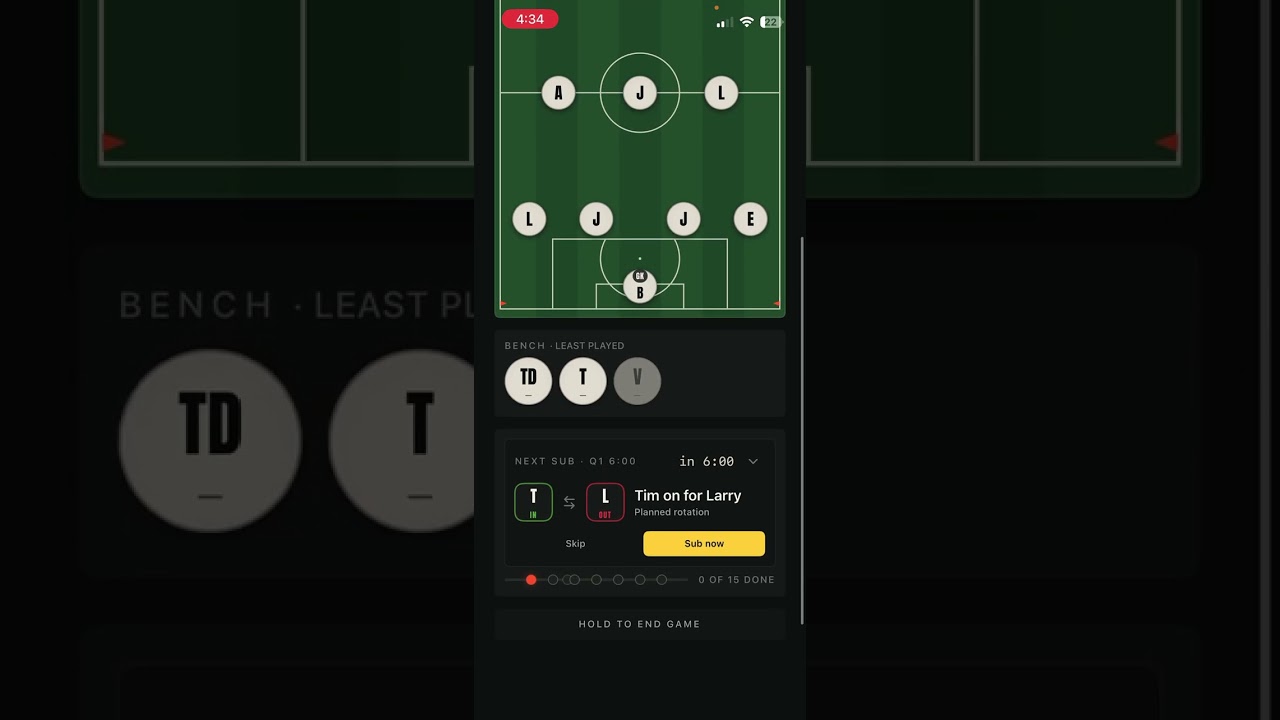
How do subs work, and what is the NEXT SUB card?
Subs are two taps, no dragging. Tap the player coming off, tap SUB OFF, then tap the bench player coming on.
The NEXT SUB card below the bench shows the next planned swap with a countdown. Sub now makes the swap on the spot and Skip waves it off. A sub planned for a later period cannot jump the period boundary, so Sub now turns it green and reads Queued: it goes in by itself the moment you start that period.
The dot track under the card opens the full queue, where you can add subs, approve one in advance so it fires by itself, or open the Timeline and let AUTO-PLAN lay out the rest of the match. If a sub would leave a player sitting a fourth period in a row, Squadly warns you and asks you to confirm.
What is the playing-time rule, and can I count quarters instead of minutes?
Squadly watches two rules for you. Every rostered player should get at least 50% of the game's minutes by full time, and a player who has sat three periods in a row must not sit a fourth. Every player chip is shaded from red through yellow to green as their share climbs; the line that matters is 50%. Whoever is in goal is exempt only while they are in goal.
Yellow warning chips above the field mean a player is under 50% with time left to fix it. Red means they cannot reach 50% even if they play every remaining minute. At the end of each period, Squadly offers sub suggestions if it has any ready.
Halves or quarters is set under Settings > Game Defaults. Playing time can be counted in minutes, the default, or in quarters: on quarters a player is credited with a period whenever they are on the field for its kickoff, which is the rule in regions that only sub at the break. Teams that play halves get the same thing counted in halves.
My region requires more than half. Can Squadly hold players to 3 quarters?
Yes. AYSO's national floor is half the game, but regions set their own; some require 2 quarters, some 3.
Set Playing time to Quarters under Settings > Game Defaults, and a Quarters required row appears beneath it. Choose Half or a whole number up to the number of periods in a game. Warnings then read “short of 3 QTRS” instead of “short of 50%”. A player who arrives late is held only to the quarters they were actually there for.
How do I add an assistant coach, and what can they do?
Only the head coach can invite. Go to Settings > Assistant coaches > INVITE ASSISTANT COACH. Squadly makes a link you can send by text, email or AirDrop. Whoever taps it and accepts joins as an assistant coach, and the roster and games sync to them.
Assistants can see everything, add and edit players, and run the live game. Only the head coach can delete players, create custom formations, invite another assistant, remove a coach, or hand over the head role.
When two coaches are in the same game, every sub, goal and period change shows on both phones within a second or two. The running clock is locked to one phone at a time; opening the game on a second phone asks whether to take it over.
Can I import my team from TeamSnap?
Tap IMPORT FROM TEAMSNAP on the empty roster, or Settings > Connect TeamSnap. Log in to TeamSnap, authorise Squadly, and pick the team. Squadly previews the player count, game count and availability records, then asks whether to create a new team or merge into an existing one.
Once connected, roster changes, new games and availability keep flowing in. A small pill shows how long ago it last synced; pull down to refresh. Disconnecting stops future syncing but keeps everything already imported.
Teams created in the new TeamSnap ONE app do not appear in the list, because TeamSnap has not opened that platform to other apps yet. Bring a TeamSnap ONE roster over with a CSV file, or add the players by hand.
What is in the post-game report, and how do I share it?
Ending the game opens the summary: final score, elapsed time, every player's minutes and playing-time percentage, the goals list, and a per-period breakdown if the game had more than one period. Players absent for the whole game are marked ABS and left out of the count rather than shown as a failure.
SHARE AS TEXT copies a plain-text recap for the team group chat. SHARE AS IMAGE renders the summary as a picture. EXPORT CSV gives you a spreadsheet of that game. Whole-season exports live under Settings > DATA.
How do I delete my account?
Settings > Delete Account in the app. Deletion is immediate and permanent: teams you head-coach are erased entirely, rosters and games included (the app warns you first if co-coaches lose access), and teams you assist on remove you as a member.
To remove one player instead, use the Roster tab. If deletion fails, email eeshankhandelwal123@gmail.com.
Watch the walkthrough
The full walkthrough, from a blank roster to the post-game report.
Opens in a new tab.
Still stuck
Write in and a person answers. Other coaches read Team Talk too, so a question there often gets a faster reply.
Inside the app, Settings > About > Send feedback opens an email to the developer. Or write to eeshankhandelwal123@gmail.com.